What is AWS EC2?
AWS EC2, (Elastic Compute Cloud), provide secure & sizable compute capacity in the cloud.
It is a fundamental IaaS service that allows customers to run applications on virtual servers without investing into physical hardware.
EC2 in simple terms
EC2 is no more than a virtual machine running in the cloud.
Configuration options
When configuring an EC2 instance, the following are possible to specify:
- The operating system (Linux, MacOs or Windows);
- How much compute power & cores (CPU) the machine will have;
- How much random access memory (RAM) the machine will have;
- How storage space the machine will have:
- Network attached (EBS & EFS);
- Hardware (EC2 Instance Store).
- The network card:
- Speed & Public IP address.
- The firewall rules:
- Note: By default, all inbound traffic is blocked & all outbound traffic is allowed.
- Bootstrap script (configuration at first launch). (EC2 User Data).
- Note: User Data is executed only once, in the entire lifecycle of an EC2 instance.
How to connect to EC2 instances?
There are two ways of connecting to an EC2 instance:
- Via SSH;
- Via EC2 instance connect.
Both of these require port 22 open on the EC2 instance, as well as a public IPv4 assigned to it.
SSH
SSH connection works over the ssh CLI utility. Once the requirements are met, the following command will establish a remote connection over your terminal:
ssh -i <filename>.pem <user>@<public_ip>Note: The .pem file is generated when the EC2 is created.
EC2 instance connect
Using EC2 instance connect is a really simple way of remotely connecting to an EC2 instance.
Once inside the AWS portal, search for your EC2 instance, click on it and there should be a “Connect” button. Pass the username and this will establish a remote connection over the browser.
EC2 storage types
EC2 supports multiple storage types that fit different needs:
EBS Volumes
An EBS (Elastic Block Store) volume, is a network drive bound to a specific AZ, that can be attached to instances while they are running.
Here is an analogy
Think of EBS volumes as network USB sticks.
Note: EBS volumes can only be mounted to a single instance at a time unless EBS multi-attach is enabled for that volume.
EBS Snapshots
EBS Snapshots are backups of EBS volumes at a point in time. They can be copied across regions.
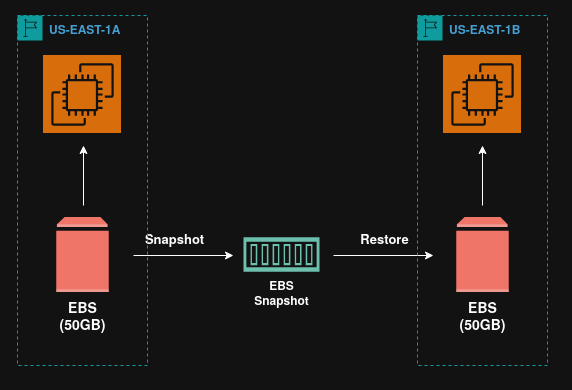
Performing snapshots
In order to perform a snapshot, it is not required to detach the volume, but it is recommended to do so.
EBS Snapshot Archive
The EBS Snapshot Archive is a feature that allows a snapshot to be moved to another storage tier, (the archive tier), which is 75% cheaper.
However, archived snapshots take between 24h to 72h to be restored.
Recycle bin for EBS Snapshots
When a snapshot is deleted, it can be moved to a recycle bin instead of permanently deleting it.
This recycle bin can be configured to retain the snapshots from anywhere between 1 day to 1 year.
Why this is useful
The recycle bin cal help recover snapshots that were accidentally deleted.
EBS volume types
There are different types of EBS volumes that can be used in AWS, these are:
Note: Out of these, only gp2/gp3 and io1/io2 can be used as boot volumes.
For more information see the official wiki.
gp2/gp3 (SSD)
These are general purpose SSD EBS volumes, cost effective and can have anywhere between 1GiB to 16 TiB.
The gp3 is the latest-generation SSD volume and is generally considered the replacement for gp2.
The gp2 models are the previous generation and provide 3 IOPS per GiB, scaling linearly as the volume grows.
io1/io2 block express (SSD)
These are provisioned IOPS SSD EBS volumes types designed for mission‑critical, IOPS‑intensive, and latency‑sensitive workloads.
They deliver the highest and most consistent performance among EBS SSD volumes.
They are ideal for high‑performance databases such as Oracle, Microsoft SQL Server, SAP HANA, and other transactional systems requiring guaranteed IOPS and low latency.
The io1 model is the previous‑generation provisioned IOPS SSD volume type, whereas io2 is the newer, more durable generation designed for the highest performance, lowest latency, and most critical I/O‑intensive workloads.
st1/sc1 (HDD)
The st1 and sc1 models are HDD‑backed EBS volume types optimized for throughput‑intensive workloads rather than random IOPS.
They are intended for large, sequential read/write patterns—analytics pipelines, big data, log processing, and similar use cases.
They are not suitable for transactional workloads or small, random I/O operations.
st1 is the high‑throughput HDD option designed for frequently accessed, large‑block workloads.
sc1 is the lowest‑cost HDD option designed for infrequently accessed data.
EBS multi-attach
EBS multi-attach is a feature that allows EBS volumes to be attached to multiple instances in the same AZ.
The max amount of instances that can be simultaneously attached to an EBS volume is 16.
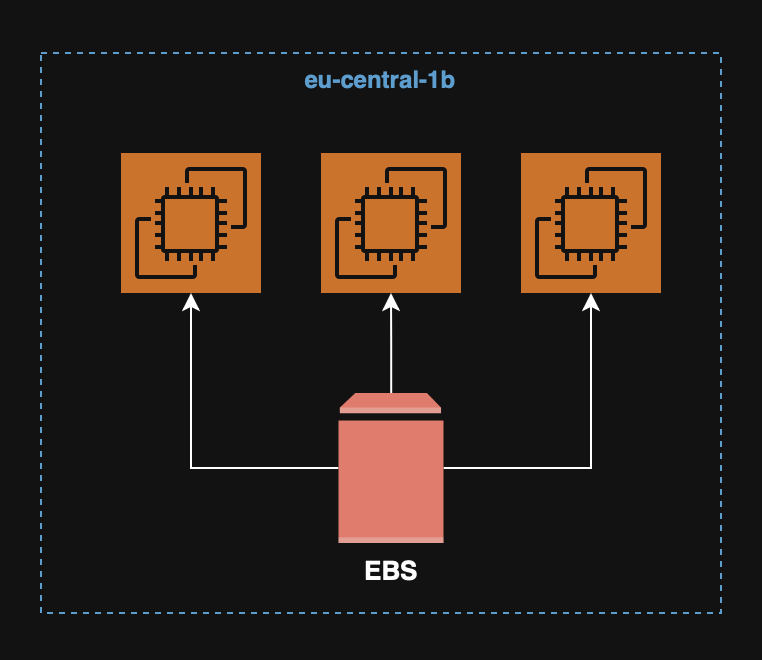
Note: This feature is only available for the io1/io2 EBS models.
EC2 Instance Store
While EBS Volumes have good performance, the fact that they are network drives limits their potential.
If high performance is needed, the EC2 Instance Store provides hardware disks with better I/O performance.
Data loss
If the underlying hardware fails, then the data saved in the EC2 instance store, will be lost.
They are suited for buffers, cache, scratch data and temporary content.
EFS Volumes
An EFS (Elastic File System) volume is a managed NFS, (Network File System), that can be mounted on 100s of instances.
EFS volumes are highly available, scalable and are about 3x more expensive that EBS Volumes.
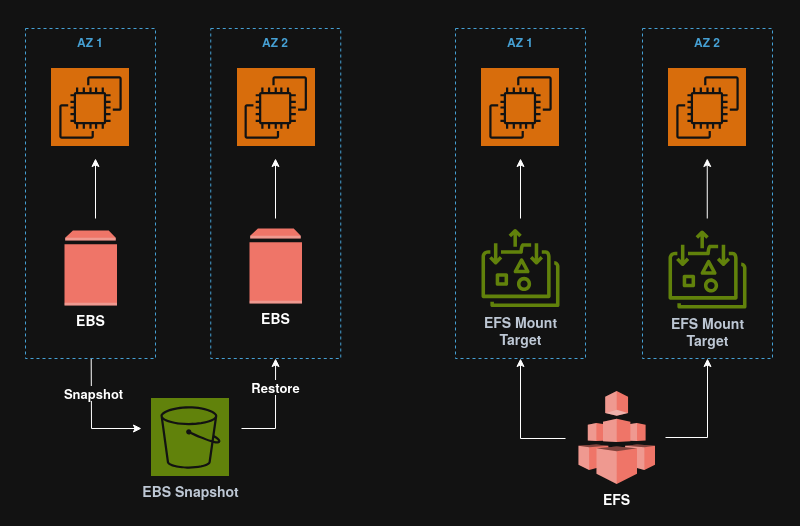
Note: EFS is a Linux file system.
EFS Infrequent Access (EFS-IA)
EFS-IA is a storage class that is cost optimized for files not accessed every day. It can have up to 92% lower cost compared to the EFS Standard class.
If EFS-IA is enabled with a lifecycle policy, then EFS will automatically move files to EFS-IA based on the last time they were accessed.
Note: From an application perspective, EFS-IA is transparent and should have no impact on it’s performance.
Amazon FSx
Amazon FSx is a fully managed service to get 3rd party high performance file systems on AWS.
FSx for Windows File Server
FSx for Windows File Server is a fully managed highly reliable and scalable Windows native shared file system.
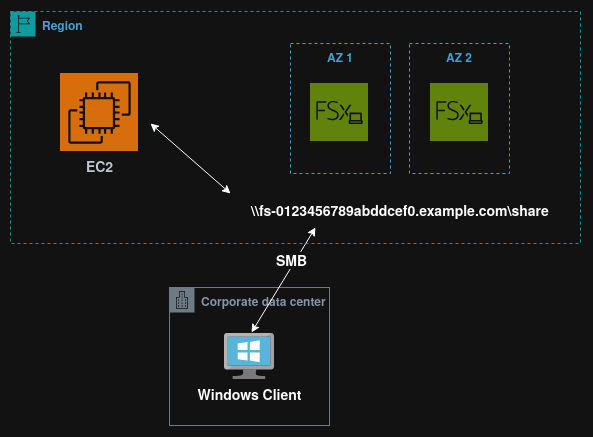
FSx for Windows File Server supports the SMB & NTFS protocols.
Note: FSx for Windows File Server is integrated with Microsoft Active Directory and can be accesses from AWS or on-prem infrastructure.
FSx for Lustre
FSx for Lustre is a fully managed, high performance, scalable file storage for High Performance Computing (HPC).
It scales up to 100 GB/s, millions of IOPS, sub-ms latencies and is used for machine learning, analytics video processing, financial modeling, etc.
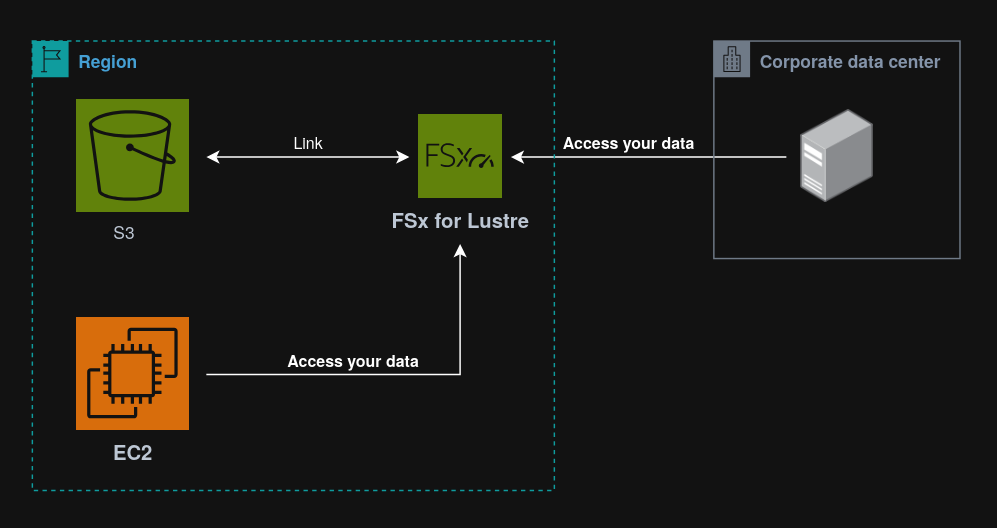
Note: The name “Lustre” is derived from “Linux” & “Cluster”.
EC2 AMIs
An AMI, (Amazon Machine Image), is a customization of an EC2 instance, that can contain custom software, configurations, monitoring, etc.
Since all software is pre-packaged, the boot & configuration times are faster.
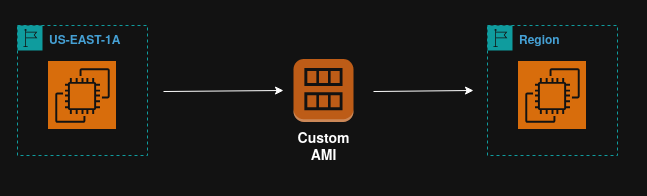
Note: AMIs are built for specific regions, meaning that they can’t be used to launch instances on other regions. However, they can be copied across regions. and then used to launch an instance on the target region.
EC2 Image Builder
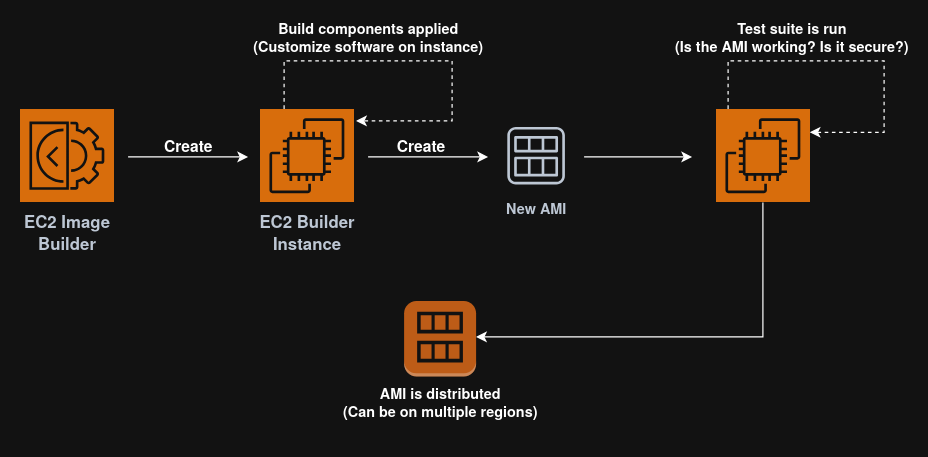
The EC2 Image Builder is a free service used to automate the creation of virtual machines ir container images.
It can be run on a schedule and it automates the creation, maintenance and validation of AMIs.
Instance types
EC2 instances come in families, each optimized for different workloads:
General Purpose
- Offers a balanced mix of compute, memory & networking;
- Suitable for most applications like web servers, development environments and small databases.
Compute Optimized
- Offers high-demand processors for compute-intensive tasks;
- Best for batch processing, gaming, media transcoding, machine learning or high performance web servers.
Memory Optimized
- Offers large memory-to-CPU ratio;
- Ideal for in-memory databases, big data processing, real time analytics or high performance caching.
Storage Optimized
- Offers high, sequential and random I/O throughput and low latency storage;
- Best for large transactional databases, big data processing, real time analytics or high performance caching.
Accelerated Computing
- Uses GPUs or FPGAs to speed up specialized tasks;
- Suitable for machine learning, AI inference/training, graphics rendering or scientific simulations.
Pricing models
AWS offers different pricing models for EC2 instances to accommodate different usage needs and cost optimization strategies:
EC2 on Demand
- Pay for what you use model, billed per second;
- Highest cost but no upfront payment;
- No long term commitment;
- Recommended for short term and uninterrupted workloads.
EC2 Reserved Instances
- Up to 72% discount compared to the EC2 on Demand model;
- Reservation of specific attributes, (Instance type, region, etc.), with either:
- 1 year (+ discount);
- 3 years (+++ discount).
- Possibility to pay:
- All upfront (+++);
- Partially upfront (++);
- No upfront (+)
- Ideal for steady state usage applications (e.g. databases).
EC2 Savings Plans
- Up to 70% discount based on long term usage;
- Commit to a certain type of usage ($10/h for 1 or 3 years);
- Usage beyond the EC2 Savings Plan is billed at the On Demand model price;
- Locked to a specific instance family & AWS region, (e.g. M5 in us-east-1).
EC2 Spot Instances
- Up to 90% discount compared to the On Demand model;
- Can be lost at any point of time if max price is less than the current spot price;
- Is the most cost effective instance in AWS.
- Useful for workloads that are resilient to failure.
EC2 Dedicated Hosts
- Fully dedicated physical server with EC2 instance capacity;
- Allows addressing of compliance requirements and usage of existing server-bound software licenses, (per-socket, per-VM licenses);
- Is the most expensive option in AWS;
- Recommended for:
- Companies with strong regulatory or compliance needs;
- Software that has complicated licensing model, (e.g. BYOL - Bring Your Own License).
EC2 Dedicated Instances
- Instances that run on hardware dedicated to the user;
- May share hardware with other instances in the same account;
- No control over instance placement. (Can move hardware after Stop/Start).
EC2 Capacity Reservations
- Reserve On Demand model instances capacity in a specific AZ for any duration;
- Access at all time to the EC2 capacity when needed;
- No time commitment, no billing discounts;
- Charged at the On Demand model rate whether the instance is running or not.
EC2 placement groups
An EC2 placement group is a feature that lets us choose how EC2 instances are physically placed together within the AWS infrastructure.
Without a placement group, AWS automatically spreads instances across hardware to reduce correlated failures.
There are three types of placement groups:
- Cluster placement group;
- Spread placement group;
- Partition.
Cluster placement group
The cluster placement group places EC2 instances all together in a single AZ.
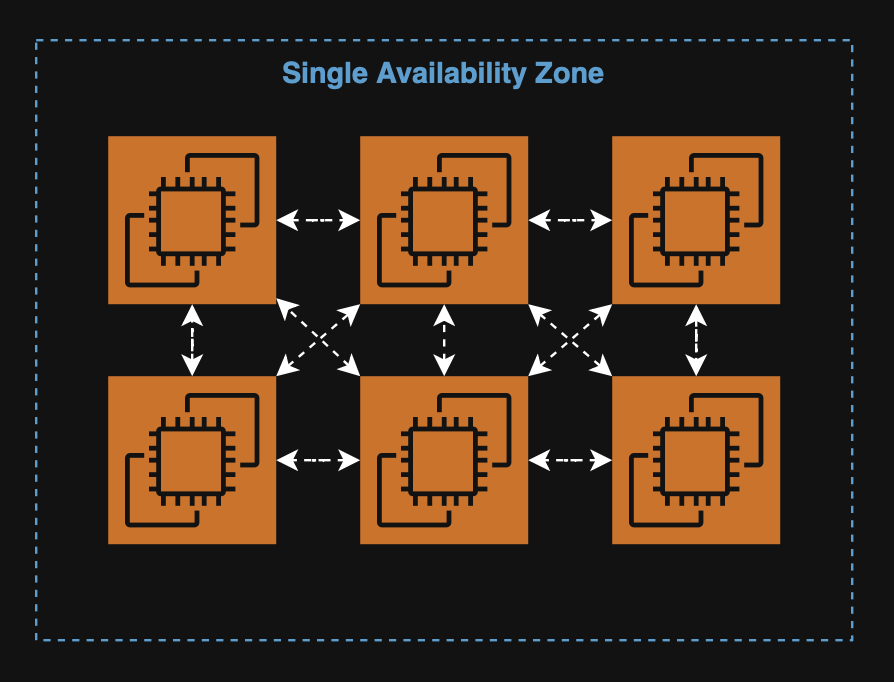
This strategy offers great networking capabilities, (10Gbs bandwidth).
Use case
This strategy is suited for applications that require extremely low latency and high network throughput, or for bug data jobs that require fast execution.
However, due to placing instances in a single AZ, this strategy is of high risk. If the AZ fails, then all instances fail.
Spread placement group
The spread placement group places each instance on separate hardware, (single or multi-AZ).
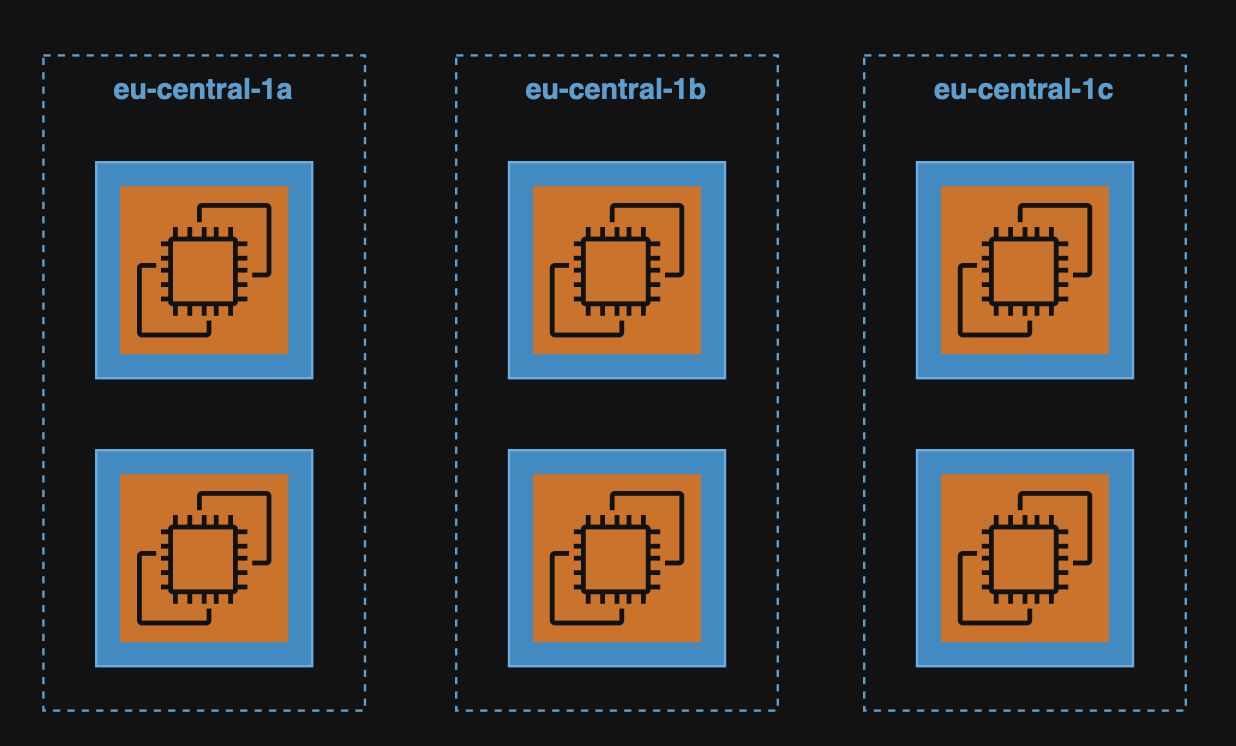
Note: Hardware refers to the rack, the underlying physical server, power source, and network equipment supporting each instance.
This strategy offers reduced risk, compared to the cluster strategy, with instances being placed on distinct hardware from each other.
Use case
This strategy is suited for applications that need to maximize high availability or for critical applications that must be failure-proof.
This strategy is limited to 7 instances per AZ, per placement group.
Partition placement group
The partition placement group divides instances into partitions, (single or multi-AZ.
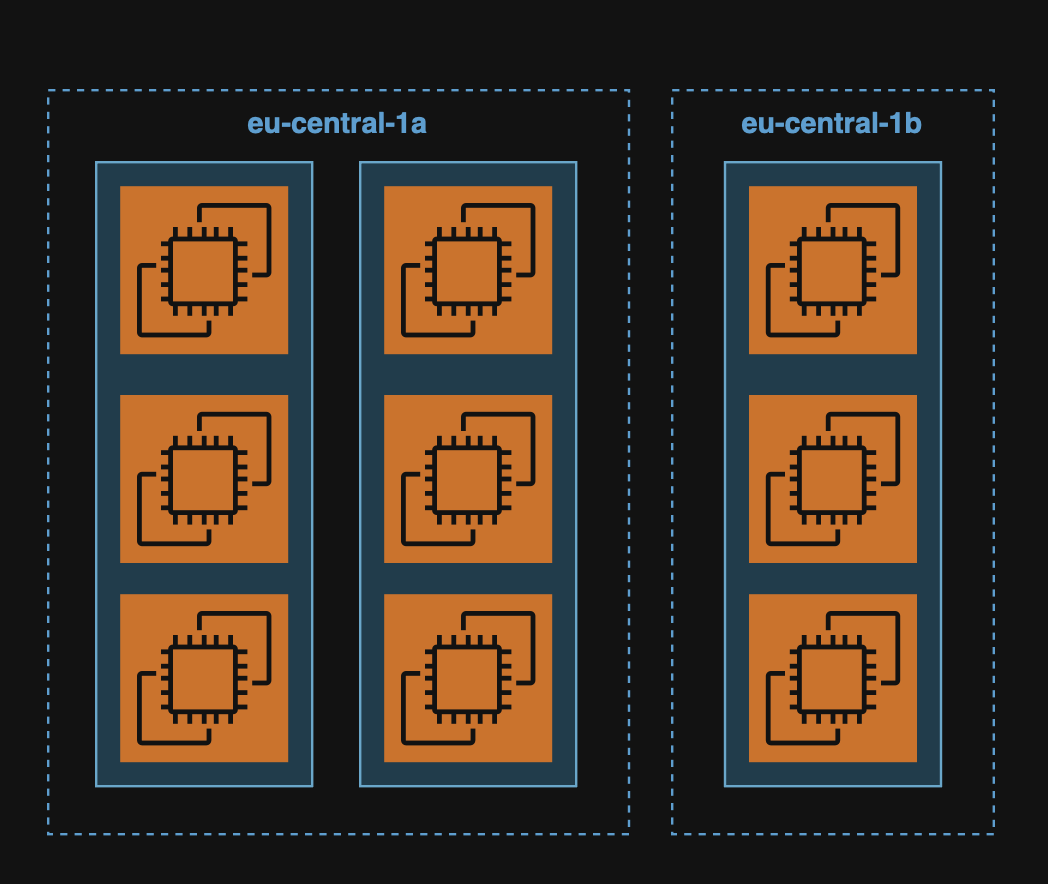
Note: Each partition is hardware isolated, (separate racks, power, and network).
This strategy offers the possibility of having up to 100s of instances, compared to the spread strategy.
Use case
This strategy is suited for applications can be partition aware to distribute data across partitions, such as big data applications, (e.g. Cassandra, Kafka, etc.)
This strategy is limited to 7 partitions per AZ, per placement group.